Reading Group Policy and Intune Results with mdmresult

Reading policy results from a Windows device should be simple. Ask what was configured, ask what applied, and compare the two. That works until the device has Group Policy, MDM policy, user-scoped settings, device-scoped settings, security baselines, applications and remediation scripts all contributing evidence in different places.
The Intune admin center tells you what the service knows about an assignment. The device tells you what reached its local policy stores and what Windows can currently observe. Neither view replaces the other. The difficult part is not finding one registry value; it is knowing what that value proves.
I built
mdmresult
for that local side of the investigation. It works as a gpresult-style
report for Group Policy alone, Intune/MDM alone, or both together:
one PowerShell script, two
metadata files and one searchable HTML report. It uses the same scan and report
code as PolicyPilot's HTML export, without the WPF interface.
You do not need Intune to use it. With -Mode Local, mdmresult
collects Group Policy results through gpresult.exe and, when
elevated, computer RSoP from WMI. It adds readable policy names and reference
details to a searchable HTML report. If the question is simply “which GPO
settings applied to this computer and user?”, this mode is a useful starting
point.
Why one policy result is not enough
A policy investigation usually crosses several boundaries, and each one can change the meaning of the result:
- Assignment is not arrival. A profile can be assigned in the service while the client is offline, waiting to sync or unable to process it.
- Arrival is not enforcement. A value in a local MDM policy store is evidence that Windows knows about the setting. It is not, by itself, proof that the target component accepted it or now behaves as intended.
- Configured is not effective. Another source can configure the same underlying behavior. Group Policy precedence, policy scope and the component's own rules still matter.
- Device is not user. A device-scoped setting can be visible while the relevant user-scoped result is absent because nobody is signed in, or because the scan ran in a different session.
- Healthy is not compliant. Enrollment evidence, app state and local configuration can look reasonable without establishing the device's Intune compliance state.
That last distinction is important enough to appear in the report itself. The Local Health & App Install Summary evaluates evidence on the device: enrollment, configuration profiles, remediation scripts and app installs. It does not reproduce the Intune compliance engine. A yellow local health summary is a list of things to review, not a tenant compliance verdict.

The Policy
CSP documentation makes another boundary explicit. The
Policy/Config branch holds configuration from a provider; the
read-only Policy/Result branch exposes the evaluated policy across
providers. When you inspect raw CSP or registry evidence, first establish which
side you are reading. A configured OMA-URI and its resulting value answer
different questions.
Build a local evidence set
mdmresult brings together sources that are normally inspected separately:
- Group Policy:
gpresult.exeRSoP output, plus computer RSoP from WMI when the scan is elevated. - Intune and MDM: the PolicyManager registry, the MDM WMI
bridge when available,
mdmdiagnosticstool.exe, Intune Management Extension logs and local app state. - Reference data: 3,726 ADMX policies from Windows 11 26H2, SecGuide and MSS-legacy, together with 1,617 Policy CSP settings from Microsoft Learn.
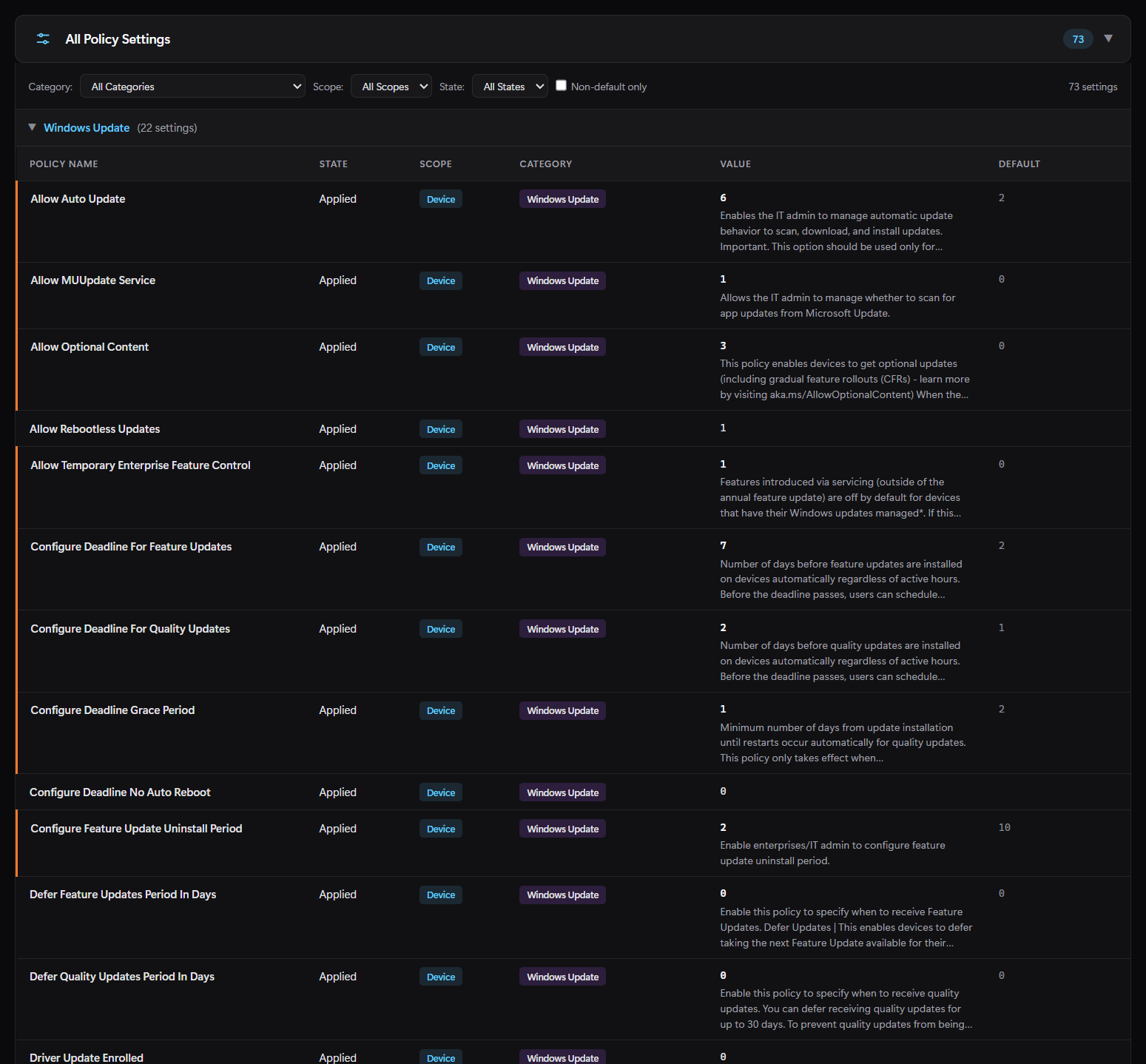
The output is a self-contained HTML report with search, filters, expandable reference details, dark and light themes and print styling. It includes the policy inventory, Group Policy conflicts and redundancy, Intune apps, certificates, Windows LAPS, provisioning packages and the local health summary. An optional JSON file exposes the settings, conflicts, apps and summary for further processing.
The metadata matters because raw results are often poor explanations. A CSP
area and value become more useful when you can see the friendly name, scope,
allowed values, default and any documented Group Policy mapping. Localized
Group Policy output adds another wrinkle: the package can match English, German
and French policy names and category paths. Other languages remain as
gpresult reports them unless the metadata is rebuilt in PolicyPilot.
Choose the scan that matches the question
The package contains mdmresult.ps1,
admx_metadata.json and csp_metadata.json. Keep all
three in the same directory. Windows PowerShell 5.1 is sufficient and no
external modules are required.
# Group Policy only: a gpresult-style report, without Intune
.\mdmresult.ps1 -Mode Local -Path C:\Temp\group-policy.html -Open

# Group Policy and MDM together; elevation is recommended
.\mdmresult.ps1

# Inspect only the local MDM side and write HTML plus JSON
.\mdmresult.ps1 -Mode Intune `
  -Path C:\Temp\policy.html `
  -JsonPath C:\Temp\policy.json `
  -Force -Open
Combined is the default and is the useful choice for hybrid or
co-managed devices. Intune avoids the Group Policy collection when
that is outside the question. Local produces the Group Policy side
only. There is also -IncludeNotConfigured, which adds roughly 1,600
known but unconfigured CSP settings as reference data. That can be useful for a
specific gap analysis, but it makes the report much larger.
Run elevated when you can. Without elevation, computer-scope Group Policy, the MDM WMI bridge and the Win32 app registry are unavailable. mdmresult still writes a report and identifies the missing evidence rather than quietly treating it as a clean result.
User scope has a similar boundary. The Group Policy result belongs to the signed-in console user. If nobody is signed in, as is common when a script runs remotely as SYSTEM, only computer scope may be available. A report cannot tell you about a user context it could not observe.
Read the report as evidence, not as an oracle
I would read a report in this order:
- Check the header and warnings. Confirm the device, scan mode, user context, enrollment and whether the scan was elevated.
- Check collection gaps. A failed or timed-out
gpresultdoes not invalidate the MDM half, but it does mean the combined picture is incomplete. Group Policy commonly needs 30 to 120 seconds; mdmresult bounds the wait and keeps the evidence it did collect. - Find the setting in every relevant source. Compare its scope, value, friendly definition and any Group Policy mapping. Similar names do not guarantee identical implementation.
- Inspect conflicts and redundancy. Different GPO values are a conflict; the same value from several GPOs is redundant configuration. Both deserve an owner even when the current winner is known.
- Return to the component that consumes the policy. A policy report can narrow the investigation. It cannot prove that Defender, Windows Update, LAPS or an application performed the intended operation.
This is particularly important on a hybrid-managed device. A Group Policy setting and an MDM setting can describe the same control through different names, paths and reporting channels. The report can place those facts beside each other and expose documented mappings. It does not invent a universal precedence rule where Windows has none. The effective result still depends on the policy type, configured control, scope and Windows component.
Timestamps need restraint too. The report is a point-in-time collection from several local sources, not one transaction. A recent sync can finish between two collection steps. Old IME evidence can describe an earlier assignment. Static metadata can also age; the report warns when its CSP metadata is more than 90 days old. When timing is the question, keep the report with the relevant MDM diagnostics and event logs rather than forcing every timestamp into one sequence.
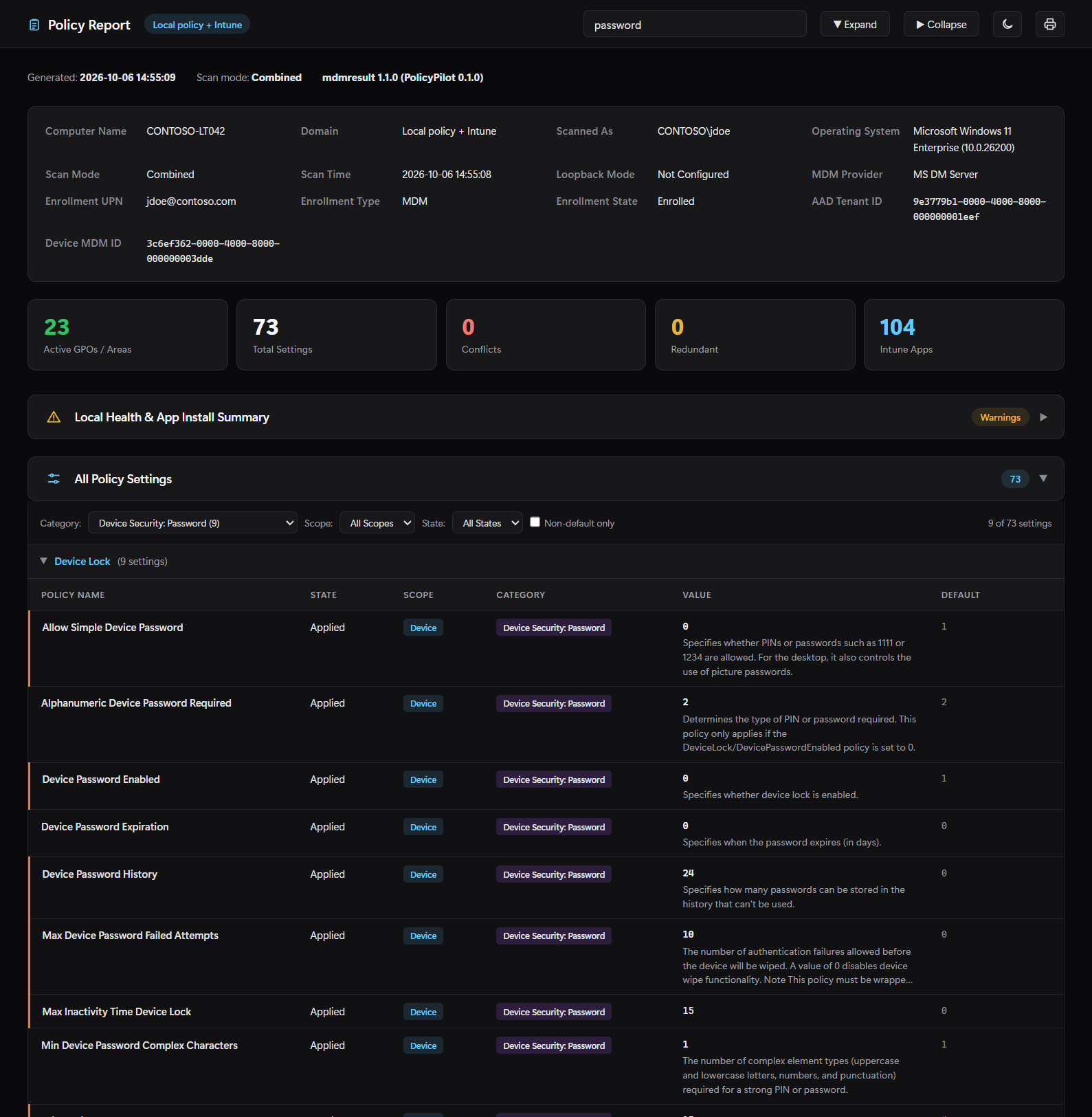
These screenshots are from the public mdmresult repository
and show its Combined-mode example. The same report interface also presents
Group Policy-only results from -Mode Local.
Use the exit code without flattening the result
| Code | Meaning |
|---|---|
0 | The report was written and mdmresult found nothing it classifies for review. |
2 | The report was written with findings: conflicts, local health warnings or issues, failed apps, or a failed Group Policy part. |
1 | The run failed; a complete requested output set was not produced. |
Code 2 is not the same as a script failure, and code 0 is not a certificate of correct policy enforcement. Automation should preserve the JSON summary or HTML report behind the code. Otherwise a rich local evidence set becomes one number, which is how this problem became difficult in the first place.
If a run exits with code 1, check which output files exist. For example, the HTML report can be written before a later JSON export fails.
Keep the report inside the investigation
The scan reads local policy evidence and writes report and temporary
diagnostic files. It attempts to remove the temporary gpresult and
MDM diagnostics folders after collection. The resulting HTML and JSON
are not harmless, though: they can contain the computer and user name,
enrollment UPN, policy values, installed applications and certificate details.
Treat them as internal diagnostic artifacts and review them before sharing.
mdmresult does not query the tenant, change policy, trigger a sync or remediate the device. That limitation is intentional. Its job is to make the local evidence readable enough that the next question becomes precise: did the setting never arrive, arrive in the wrong scope, lose to another source, fail in the consuming component, or simply get reported in a different place?
The current package and usage notes are in the
mdmresult
directory. For the underlying Windows tools, see Microsoft's documentation
for
gpresult,
MDM diagnostics
and the
Policy CSP.